Sponsor Actions
info
The ASU SSLVPN is required to connect to the Voyager Account Manager. On-campus networks still require VPN.
If you are faculty, you can control your sponsored users from the web portal.
Approving Users to Sponsor
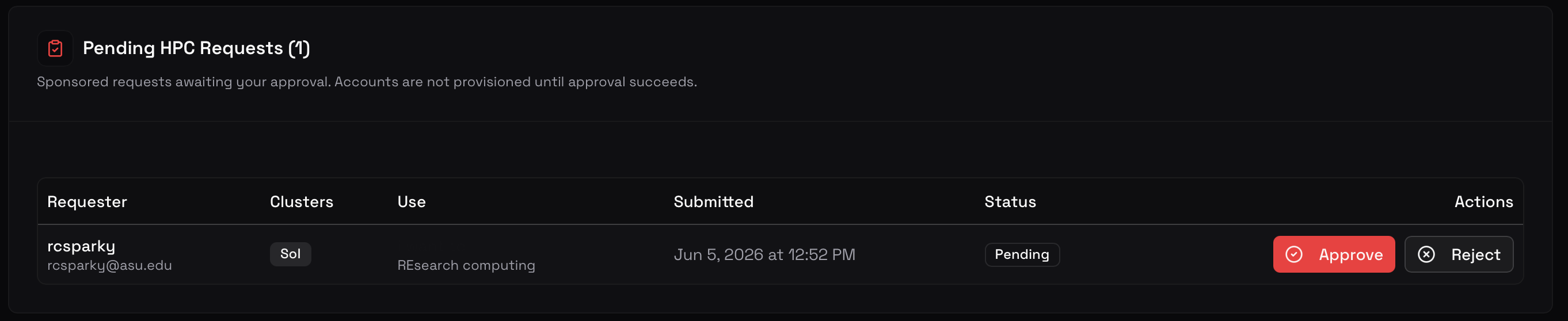
If your student has already initiated a request from the Account Manager, you will see the request appear in your portal under "Sponsored Users":
Approving Users to Use your QOS
If your student has already initiated a request from the Account Manager to use your private QOS, you will see the request appear in your portal under "Slurm".
Adding Users to Sponsor
- On the left-hand sidebar, under Management, click "Sponsored Accounts."
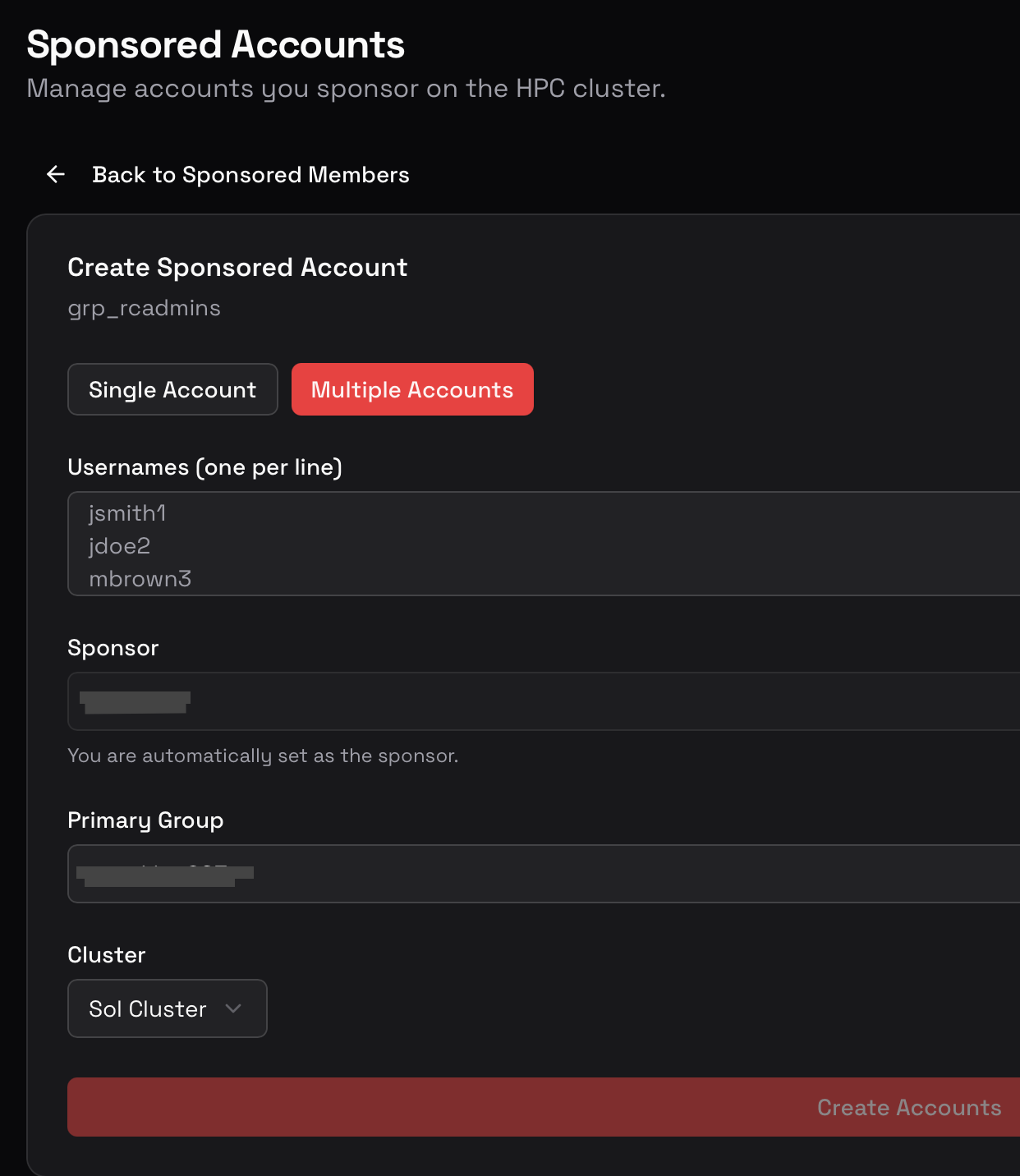
- On the right, click the red button "Create Account".
- You can add a single user, or multiple users (click Single/Multiple Accounts)
- Enter the username/s of your intended sponsorees.
- Select the Supercomputer resource (Sol or Phoenix)
- Finally, click "Create Account"
Ending Sponsorship for Users
On the left-hand sidebar, under Management, click "Sponsored Accounts."
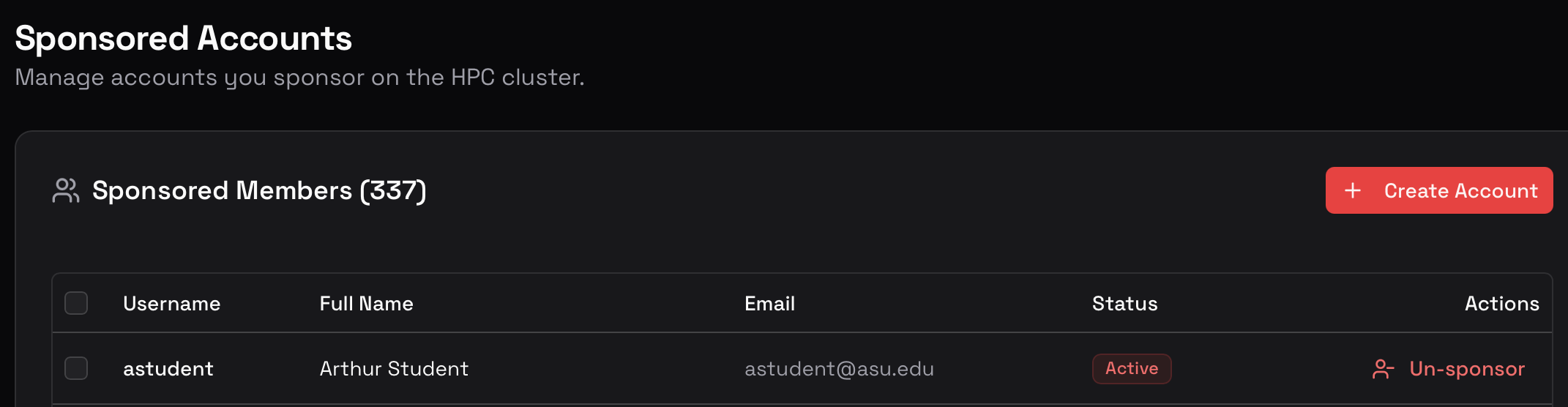
Locate the user you wish to withdraw sponsorship of and click "un-sponsor" on the right.