Transferring Files between Sol and Phoenix
ASU supercomputers have dedicated 100 GiB home directories and dedicated scratch file systems. Supported methods for transferring files between systems:
- rsync
- Globus
Globus is the recommended method of transfer for moving large counts of files or large-sized files; it has built-in mechanisms for maximizing transmission speeds and resuming interrupted transfers.
rsync is available on all Linux systems and can transfer files directly between Sol and Phoenix.
/data is the same on both Sol and Phoenix, so transferring files between /data on either system is not necessary.
rsync
Use the Sol data transfer node for all rsync work. Do not run rsync on login nodes.
ssh soldtn
- Sol Scratch to Phx Scratch
- Phx Scratch to Sol Scratch
- Sol Home to Phx Home
- Phx Home to Sol Home
rsync -a --progress /scratch/$USER/path/to/source/dir /phxscratch/$USER/path/to/destination/dir
rsync -a --progress /phxscratch/$USER/path/to/source/dir /scratch/$USER/path/to/destination/dir
rsync -a --progress /home/$USER/path/to/source/dir /phxhome/$USER/path/to/destination/dir
rsync -a --progress /phxhome/$USER/path/to/source/dir /home/$USER/path/to/destination/dir
Where:
-a preserves all metadata and copies recursively.
--progress shows real-time progress.
Add a trailing slash to copy the contents of the source directory without copying the directory itself.
You may want to run rsync within a tmux or screen session to avoid losing progress if your connection drops.
Globus
Globus via the Web Browser
Additionally available is transferring files through your web browser via Globus. Using the web browser requires the ASU Single Sign-On and creating collections.
Login Steps
Navigate to the Globus Website and follow these steps to log in:
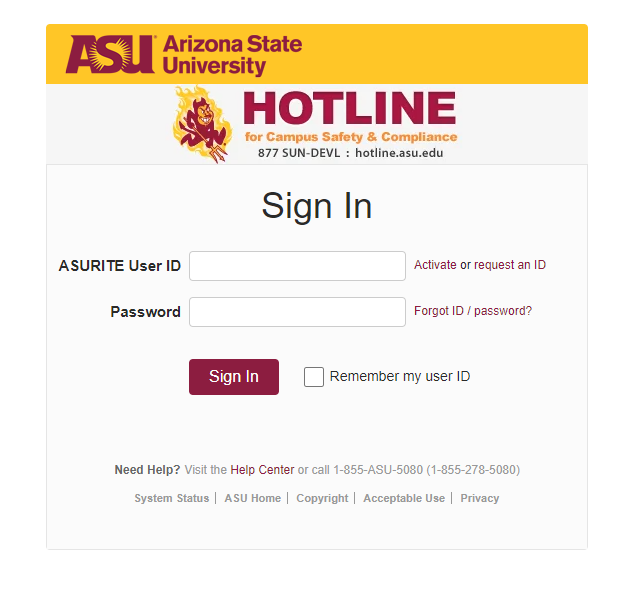
- Sign in with the institution Arizona State University.

- Use your ASURITE username and password.
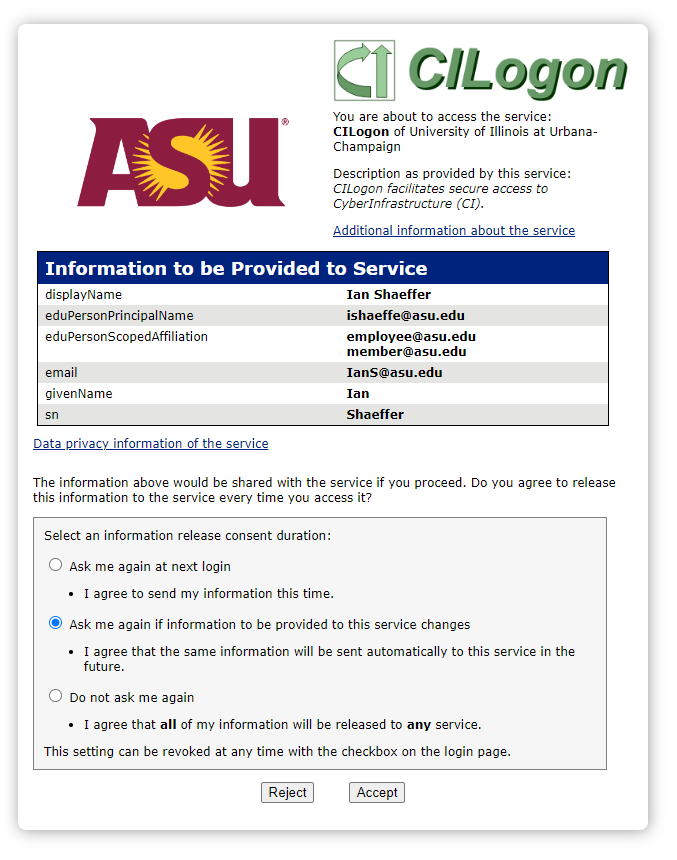
- Accept the privacy service notice.
Navigate to the File Manager
-
Once logged in, navigate to the File Manager tab on the left side of the page.
-
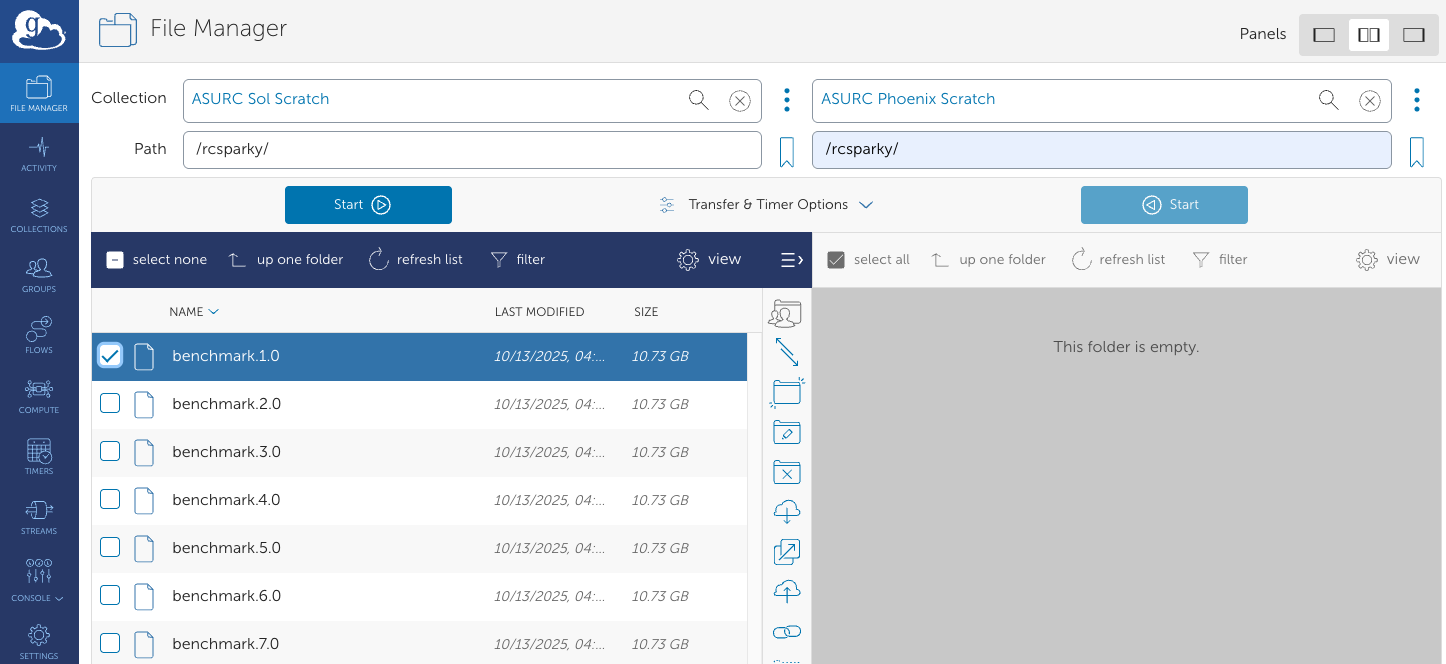
Make sure the two-panel view is selected from the top right corner.

- Choose a source and destination collection from official Research Computing entries, signified by ASURC.
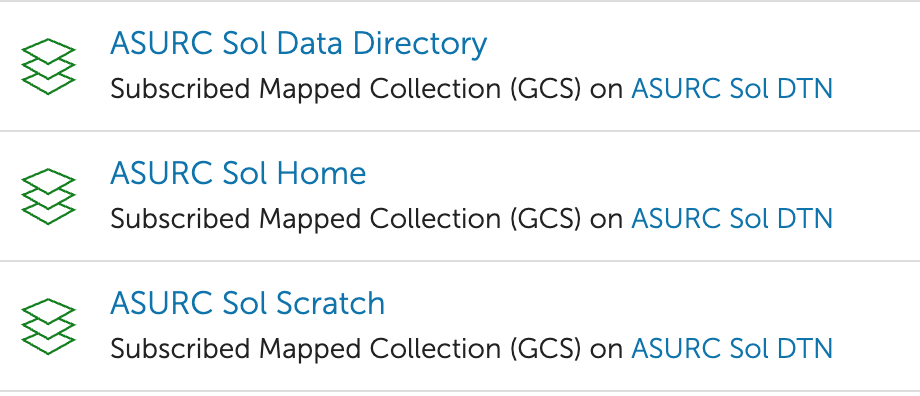
For example, to transfer files from Sol Scratch to Phoenix Scratch, select the ASURC Sol Scratch collection on the left panel and the ASURC Phoenix Scratch collection on the right panel.
- Navigate to the desired source and destination directories using the file pane, select files/folders to transfer, and click the blue Start button in the middle of the page to begin the transfer.
Transferring files between Sol and Phoenix scratch for the explicit purpose of bypassing the 90-day purge policy on either system is not allowed. Violations may result in account suspension.