Transferring Files
ASU Supercomputers support many methods for transferring files to and from the supercomputer:
- Globus
- Cyberduck
- Web Portal
- Command Line Tools (SCP, rsync)
Globus is the recommended method of transfer for moving large counts of files or large sized files; it has built in mechanisms for maximizing transmission speeds and resuming interrupted transfers. Transfers using Globus can either use an installed application on your desktop or through the Globus web interface.
SCP is ubiquitous among Linux and Mac machines and can now be found on Windows machines, as well. In addition, all these operating systems have third-party SCP options, such as Filezilla, Cyberduck, WinSCP, among others.
Globus
Globus via Globus Connect Personal
Globus Connect Personal (GCP) is highly recommended, easy-to-use application installable to your workstation. It is comprehensively documented on the Globus Connect Personal website for Mac, Windows, and Linux.
Globus via the Web Browser
Additionally available is transferring files through your web browser. Using the web browser requires the ASU Single-sign on and creating collections.
Login Steps
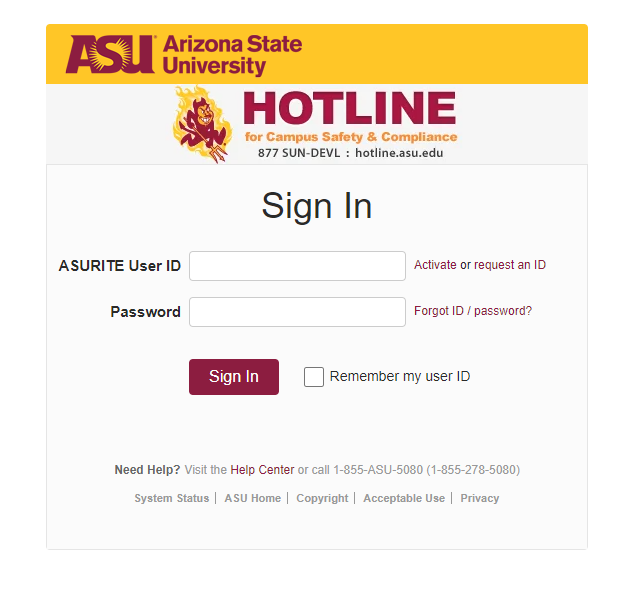
- Sign in with the institution Arizona State University.

- Use your ASURITE username and password.
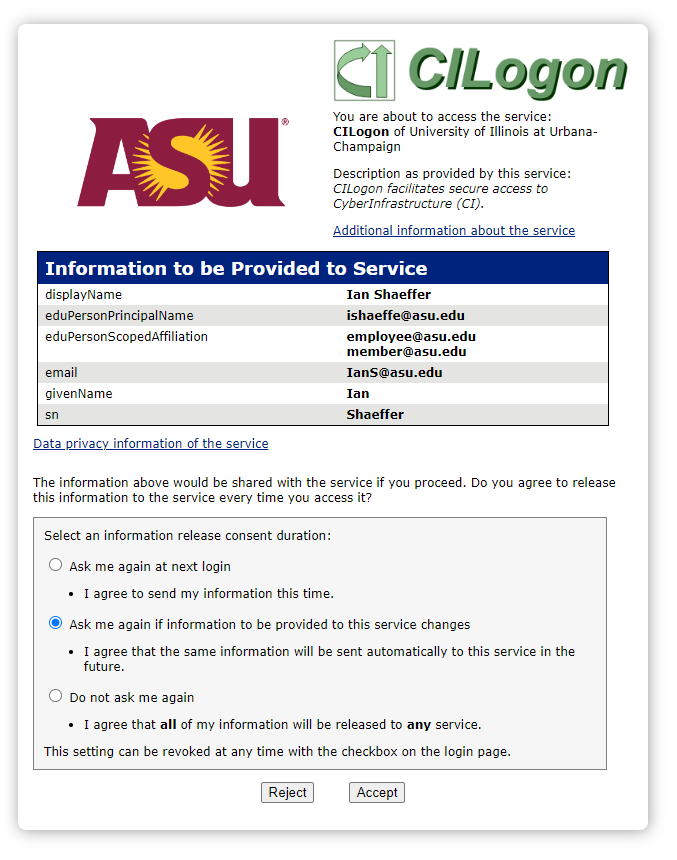
- Accept the privacy service notice.
Navigate to the File Manager
-
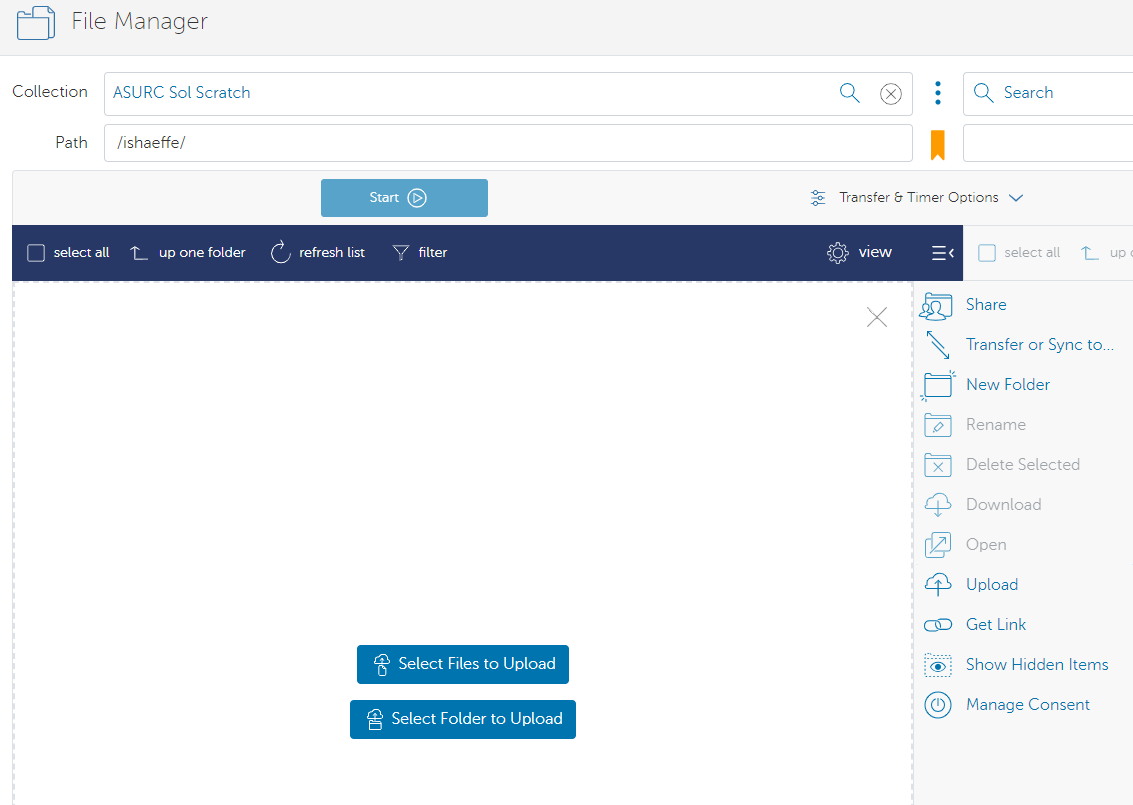
Once logged in, navigate to the File Manager tab on the left side of the page.
-
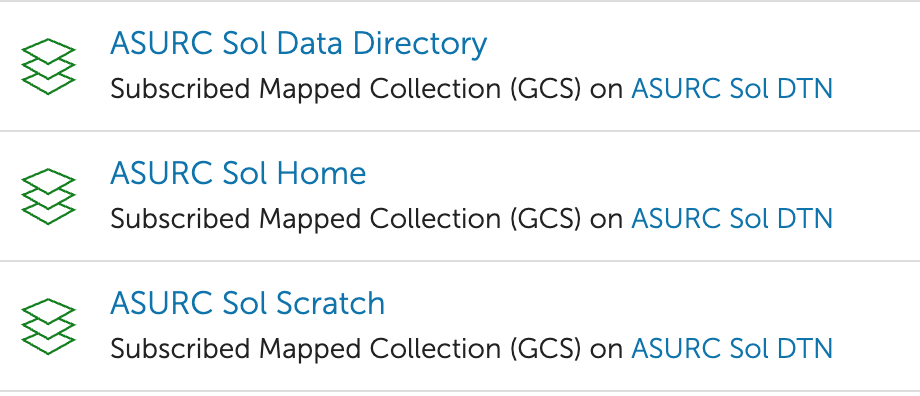
Choose a Globus collection from official Research Computing entries, signified by ASURC.
- Select your desired file and upload them.
Cyberduck
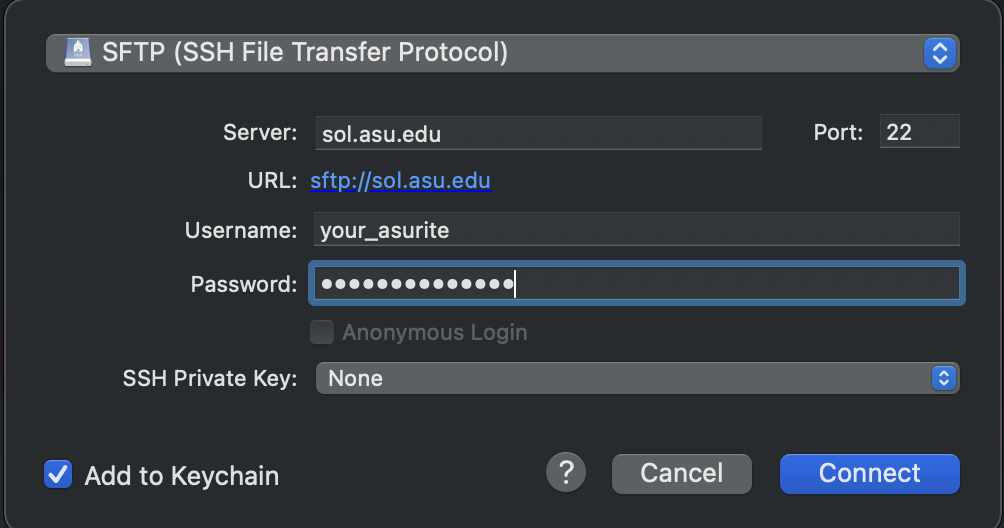
Cyberduck is a popular open-source client for FTP and SFTP file transfers. It is available for both Mac and Windows operating systems. You can download Cyberduck from here.
- Sol
- Phoenix
Server: sol.asu.edu
Port: 22
Server: phx.rc.asu.edu
Port: 22
Web Portal
You can use the Web Portals available for Sol and Phoenix to move files to and from the supercomputer. However, the portal should be used for small files only--anything larger than a few hundred megabytes may stall and the web portal does not have the capability of resuming transfer attempts.
Command Line Tools
SCP
scp is secure copy, it allows the secure transferring of files between the local host and the remote host or between two remote hosts. It can be used for small-size files or folders.
These commands must be run from a terminal on your local workstation while connected to the ASU VPN.
- Upload a File to Sol
- Download a File to your Workstation
scp /Desktop/file_on_desktop.txt asurite@sol.asu.edu:/scratch/asurite/file_on_sol.txt
scp asurite@sol.asu.edu:/home/asurite/file_on_sol.txt /Desktop/
Common options:
-p: Preserves modification time, access time, and modes from the original file.
-r, --recursive: Enables recursive downloading, allowing you to transfer entire directories.
For more information on scp, please see the scp manual page.
Rsync
rsync is a remote sync utility, it allows the secure transferring of files between the local host and the remote host or between two remote hosts. It can be used for large-size files or folders.
These commands must be run from a terminal on your local workstation while connected to the ASU VPN.
- Upload a Directory to Sol
- Download a Directory to your Workstation
rsync -tr --progress /Desktop/directory_on_local asurite@sol.asu.edu:/home/asurite/directory_on_sol
rsync -tr --progress asurite@sol.asu.edu:/home/asurite/directory_on_sol /Desktop/directory_on_local
Common options:
-t: Preserves modification time, access time, and modes from the original file.
-r, --recursive: Enables recursive downloading, allowing you to transfer entire directories.
--progress: shows real time progress.
For more information on rsync, please see the rsync manual page.