Troubleshooting the Webportal
This page details various issues one might have with the webportal and step-by-step instructions to address and fix them.
Session Went From Queued to Completed
After submitting a job, if your session progresses straight from “Queued” to “Completed” without becoming available for use, you likely have a Python-related package conflict.
Conda in bashrc
Conda is known to cause issues on the supercomputer, so it is recommended to instead use mamba. If you have already installed and used conda on the supercomputer, it may have integrated itself into your shell start-up scripts and this will interfere with webportal jobs from properly starting.
Open a shell on the supercomputer and check your ~/.bashrc file. If this file has any lines pertaining to conda or mamba, you will need to remove them or comment them out. Going forward, use a module to load a Python package manager so as not to conflict with the web portal.
We have created a helper function to assist with removing these lines:
remove_conda_from_bashrc
Pip Used Outside of a Mamba Environment
If you used pip to install a python package outside of a mamba environment or used pip with the --user option, pip likely put files in ~/.local/lib/python*. Certain Python packages or their dependencies may conflict with the web portal. If you can verify that none of the files in ~/.local/lib/python* are needed, you can remove these with the command: rm -rf /.local/lib/python*
If you have any questions, reach out Research Computing staff for assistance.
Home Directory Full
The webportal needs to create temporary files for each session. If your 100GiB home directory is out of space, these files cannot be created and the session will fail to start.
You will need to remove files to clear up space in order to start a new web portal session. There is a wiki page on cleaning up your $HOME directory.
Other changes to .bashrc
.bashrc is sourced on each web portal session; some changes to .bashrc therefore can impact the session starting in hard-to-detect ways. Some examples include export PYTHONNOUSERSITE=1, but any Python-related environment modifications can typically be removed--mamba can usually handle it’s own environment modifications!
Proxy Error
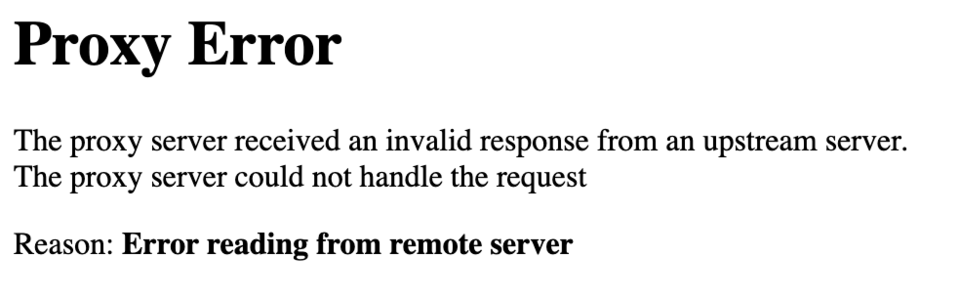
If you encounter a proxy error while accessing the web portal (often when opening a Jupyter or R session), you can resolve this by clearing your browser's cookies and cache, switching to a different web browser, or using an incognito/private browsing window.
The shortcut for this is Ctrl + Shift + Delete on Windows or Command + Shift + Delete on a Mac.
Another solution is to edit the URL you are using for accessing the web portal:
# original URL
https://ood04.sol.rc.asu.edu/pun/sys/dashboard

# add an additional part to restart the web services of the web portal:
https://ood04.sol.rc.asu.edu/nginx/stop?redir=/pun/sys/dashboard/
Sessions Disappearing
If you are having trouble with the interactive sessions disappearing after trying to launch a new session, please ensure that any ad blockers or privacy filters have been disabled for the web portal URLs.
Web browser plugin examples:
- Privacy Badger
- Avast
- Ublock Origins
- AdBlock
- AdGuard
RStudio Stuck Loading
By default, RStudio attempts to reopen the files from your last session. If those files were large and your current environment has less available memory, RStudio may hang while loading them. If this happens, or if RStudio fails to start for any other reason, you can reset its cache and state with:
mv ~/.local/share/rstudio/ ~/.local/share/rstudio.bak-$(date '+%Y-%m-%d')
Reset the Web Portal
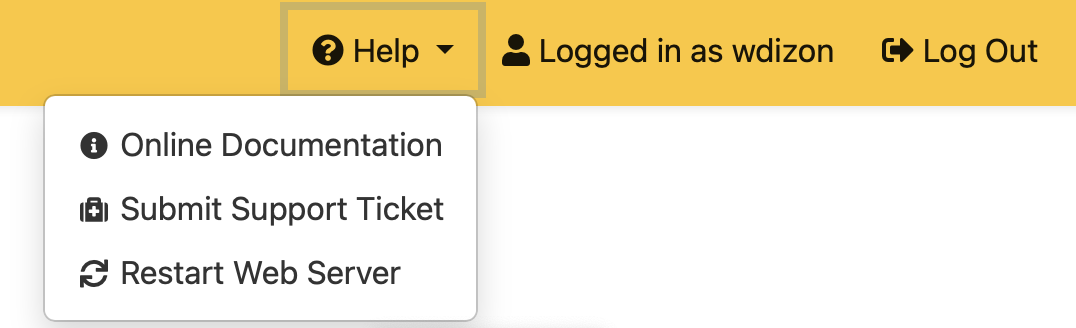
Various errors may appear in the web portal that require a restart of the web portal session. Simply click RESTART WEB SERVER with the following button at the top of the browser: